
Anúncios
Using Alexa on any smartphone is now easier than ever, giving you access to Amazon’s powerful voice assistant wherever you go, regardless of your device’s brand.


Amazon’s Alexa has evolved from being exclusively tied to Echo devices into a versatile assistant available across multiple platforms. Whether you own an Android phone, iPhone, or even a budget smartphone, you can harness Alexa’s capabilities to manage your smart home, play music, set reminders, shop online, and much more—all through simple voice commands.
The beauty of using Alexa on your phone lies in its flexibility and portability. Unlike stationary smart speakers, your smartphone travels with you everywhere, transforming Alexa into a truly mobile companion. This guide will walk you through everything you need to know about installing, setting up, and maximizing Alexa’s potential on any mobile device.
📱 Why Use Alexa on Your Smartphone?
Before diving into the setup process, it’s worth understanding why millions of users have chosen to add Alexa to their mobile devices. The advantages extend far beyond simple convenience, offering practical benefits that enhance daily life.
First and foremost, having Alexa on your phone means you’re never without your virtual assistant. Whether you’re commuting, traveling, or simply away from your Echo device, you maintain full access to Alexa’s extensive skill set. This continuity ensures your smart home controls, shopping lists, and personalized routines remain accessible regardless of location.
Additionally, the mobile app serves as a comprehensive control center for all your Alexa-enabled devices. You can adjust settings, manage smart home equipment, review voice history, and configure new devices—all from one convenient interface. The smartphone version also supports hands-free mode on compatible devices, allowing you to summon Alexa without touching your phone.
🔧 Installing the Amazon Alexa App Step-by-Step
Getting started with Alexa on your smartphone requires downloading the official Amazon Alexa app. The process varies slightly between Android and iOS devices, but both are straightforward and take just minutes to complete.
For Android Users
Android users can find the Alexa app directly in the Google Play Store. Simply open the Play Store, search for “Amazon Alexa,” and look for the app with the blue circular icon featuring Alexa’s signature ring design. Tap “Install” and wait for the download to complete—the app is approximately 200MB, so ensure you have adequate storage space.
Once installed, open the app and sign in with your Amazon account credentials. If you don’t have an Amazon account, you’ll need to create one—the process is free and requires only basic information like your email address and a password. After signing in, the app will request various permissions including microphone access, location services, and notification rights. Granting these permissions enables full functionality, though you can customize them later in your phone’s settings.
For iPhone and iPad Users
iOS users follow a similar process through the Apple App Store. Search for “Amazon Alexa,” identify the official app by Amazon Mobile LLC, and tap “Get” to begin installation. You may need to authenticate using Face ID, Touch ID, or your Apple ID password depending on your security settings.
The iOS version offers seamless integration with Apple’s ecosystem while maintaining all of Alexa’s core features. After installation, sign in with your Amazon credentials and grant the necessary permissions when prompted. iPhone users particularly benefit from Siri Shortcuts integration, which allows you to trigger Alexa commands through Siri—creating an interesting bridge between competing voice assistants.
⚙️ Initial Configuration and Personalization
After installation, configuring Alexa to match your preferences and needs makes the experience significantly more valuable. The setup wizard guides you through essential steps, but understanding what each setting does helps you optimize the assistant for your specific use case.
The first configuration screen asks you to select your language and region. This setting affects Alexa’s accent, available skills, and service compatibility. Choose carefully, as some features and integrations are region-specific. You can always change this later, but it may require reconfiguring certain connected services.
Next, you’ll set up your location services. Allowing Alexa access to your location enables features like weather updates, traffic information, local business recommendations, and location-based routines. For privacy-conscious users, you can limit location access to “while using the app” rather than “always,” though this restricts certain automatic features.
Connecting Your Smart Home Devices
One of Alexa’s most powerful capabilities is smart home control. The app’s “Devices” section lets you discover and connect compatible equipment ranging from lights and thermostats to cameras and door locks. Tap the “+” icon, select “Add Device,” and choose your device category. The app will search for compatible devices on your network.
For devices requiring account linking—like Philips Hue, TP-Link, or Samsung SmartThings—you’ll need to sign into those respective services through the Alexa app. This one-time authentication process grants Alexa permission to control your equipment. Once connected, you can organize devices into groups (like “Living Room” or “Bedroom”) for easier voice control of multiple items simultaneously.
🎤 Activating Hands-Free Mode
While you can always tap the Alexa button within the app to issue commands, hands-free mode offers a more authentic voice assistant experience. This feature allows you to wake Alexa using just your voice, similar to how you’d interact with an Echo device.
To enable hands-free mode, navigate to Settings within the Alexa app, then select “Alexa on this Phone.” Toggle on the “Enable Alexa Hands Free” option. The app will request permission to run in the background and access your microphone continuously. Keep in mind that this feature impacts battery life since the app must constantly listen for the wake word.
Android users have additional flexibility with wake word customization on certain devices. Beyond “Alexa,” some phones support alternative wake words like “Amazon,” “Echo,” or “Computer”—though availability varies by device manufacturer and region. iPhone users currently have more limited wake word options due to iOS restrictions.
🔊 Maximizing Audio and Music Features
Music playback represents one of Alexa’s most popular functions, and the mobile app delivers the full experience. You can connect various music services including Amazon Music, Spotify, Apple Music, Pandora, and many others through the app’s settings.
To link a music service, go to Settings > Music & Podcasts > Link New Service. Select your preferred platform and sign in with your account credentials. Once connected, you can set a default music service that Alexa uses when you make generic requests like “play some music” without specifying a platform.
The mobile app also supports Bluetooth connectivity, allowing your phone to stream audio to external speakers or headphones. This turns any Bluetooth speaker into an Alexa-enabled device temporarily. Simply connect your phone to the speaker via Bluetooth, then use Alexa voice commands—the audio output routes through your connected speaker while Alexa’s responses play through your phone.
📋 Creating Custom Routines for Automation
Routines represent Alexa’s most powerful automation feature, allowing you to trigger multiple actions with a single command or automatically based on conditions like time or location. The mobile app provides an intuitive interface for creating sophisticated routines without any coding knowledge.
Access routines by tapping the “More” menu, then selecting “Routines.” Tap the “+” icon to create a new routine. First, set up your trigger—this could be a voice command (like “Alexa, good morning”), a specific time, or even your phone’s location (arriving home or leaving work). Next, add actions that execute when the routine triggers.
Actions can include adjusting smart home devices, playing news briefings, setting reminders, sending messages, or even triggering other routines. For example, a “leaving home” routine might lock your smart locks, adjust your thermostat, turn off lights, and start playing your favorite podcast—all automatically when your phone detects you’ve left your home location.
🛡️ Privacy Settings and Voice History Management
Privacy concerns naturally arise when using any voice assistant. Amazon has implemented several controls that give users transparency and choice regarding their data. Understanding these settings helps you balance functionality with privacy preferences.
The Alexa Privacy section, found under Settings, provides access to all your voice recordings. Here you can review every interaction Alexa has recorded, listen to the audio files, and delete recordings individually or in bulk. You can also enable automatic deletion, where recordings are removed after three or eighteen months—or disable voice recording storage entirely, though this limits Alexa’s ability to improve personalized responses.
Additionally, you can manage what Amazon uses your data for, including whether your recordings help train Alexa’s speech recognition. Opting out of this doesn’t affect basic functionality but may reduce personalization over time. The app also allows you to prevent human review of your recordings, a process Amazon uses for quality improvement but that privacy-focused users may prefer to disable.
💡 Essential Alexa Skills for Mobile Users
Skills extend Alexa’s capabilities far beyond built-in features, functioning like apps for your voice assistant. The Alexa app’s Skills section offers thousands of options across categories including productivity, entertainment, smart home, health, and education.
Some particularly valuable skills for mobile users include:
- IFTTT: Connects Alexa with hundreds of other services and apps for advanced automation
- Find My Phone: Helps locate your device by making it ring, even on silent mode
- AnyPod: Allows playing podcasts from various platforms with simple voice commands
- Uber: Request rides hands-free by simply asking Alexa to call you an Uber
- Fitbit: Check your fitness stats and sleep data using voice commands
- TuneIn: Access thousands of radio stations and live news broadcasts globally
Installing skills is simple—browse or search the Skills section, select the skill you want, and tap “Enable to Use.” Some skills require account linking to function, similar to smart home device setup. Once enabled, each skill provides specific voice commands you can use to access its features.
🌐 Using Alexa Across Different Phone Brands
While the Alexa app functions on virtually any modern smartphone, certain manufacturers have integrated Alexa more deeply into their devices. Understanding these differences helps you maximize functionality based on your specific phone model.
Samsung Galaxy Devices
Samsung offers optional Alexa integration on many Galaxy phones, sometimes allowing Alexa to coexist with Bixby, Samsung’s native assistant. Some Galaxy models feature a dedicated Alexa button or support setting Alexa as the default assistant activated by the power button. This deeper integration means you can access Alexa even from the lock screen without unlocking your phone first.
OnePlus and Other Android Manufacturers
Many Android manufacturers support setting Alexa as the default assistant that activates when you long-press the home button. This replacement of Google Assistant with Alexa provides quicker access but means sacrificing some Google-specific features. The trade-off depends on which ecosystem you’re more invested in—Amazon’s smart home and shopping features versus Google’s search and Android integration.
iPhone Compatibility Considerations
iOS devices run Alexa through the app exclusively, without system-level integration that Android sometimes offers. However, Siri Shortcuts provide a workaround, letting you create custom Siri phrases that open the Alexa app and trigger specific commands. While less seamless than native integration, this approach works reliably once configured.
🔋 Managing Battery Impact and Performance
Running Alexa continuously in hands-free mode naturally impacts battery life since the app must constantly monitor audio for the wake word. However, several strategies minimize this drain while maintaining functionality.
First, consider whether you truly need hands-free mode active at all times. You might disable it during work hours or overnight, manually activating Alexa only when needed by tapping the app icon. This preserves battery while keeping all features accessible with one extra tap.
For those who prefer hands-free mode, modern smartphones include battery optimization settings that can interfere with Alexa’s background operation. Navigate to your phone’s battery settings and exempt the Alexa app from aggressive battery saving measures. This ensures the app remains active in the background without being killed by overzealous power management.
Finally, reducing the frequency of skills that automatically refresh data, limiting notification-based routines, and disabling location tracking when not needed all contribute to better battery performance without significantly impacting functionality.
📞 Communication Features: Calls and Messaging
The Alexa app transforms your smartphone into a communication hub for the Alexa ecosystem. You can make voice and video calls to other Alexa users, send voice messages, and even call most phone numbers in the US, Canada, and Mexico for free.
Setting up communication requires verifying your phone number within the app. Navigate to the Communicate tab (the speech bubble icon), and follow the verification process. Once complete, you can ask Alexa to “call Mom” (if Mom is in your contacts and has Alexa) or “call [contact name]’s mobile phone” to place a regular phone call.
The Drop In feature allows instant connection to your household’s Alexa devices, functioning like an intercom system. When you’re away from home, you can Drop In on your Echo devices to check on pets, communicate with family members, or simply see if you left the lights on (if you have an Echo Show or other camera-equipped device).
🚗 Alexa on the Go: Travel and Car Integration
Mobile Alexa shines during travel, providing information and assistance precisely when you need it most. Location-based routines can automatically trigger when you arrive at or leave specific places—starting your commute playlist when you leave work or turning on lights when you arrive home.
Many modern vehicles support Android Auto or Apple CarPlay, both of which can run the Alexa app. This integration lets you use Alexa through your car’s infotainment system, controlling navigation, music, and communication hands-free while driving. Simply connect your phone to your car, open the Alexa app, and use voice commands as you would anywhere else.
For vehicles without smartphone integration, Alexa can still assist with navigation by sending directions to compatible navigation apps. Ask Alexa to “navigate to [destination],” and she’ll open your default navigation app with the route already loaded—a seamless experience that keeps your focus on the road.
🛠️ Troubleshooting Common Issues
Despite Alexa’s generally smooth operation, occasional issues arise. Understanding common problems and their solutions saves frustration and keeps your assistant running optimally.
If Alexa stops responding to voice commands, first verify that the app has microphone permissions in your phone’s settings. Apps sometimes lose permissions after system updates. Also check that hands-free mode remains enabled in the Alexa app settings—this occasionally toggles off unexpectedly.
Connection issues with smart home devices usually stem from network problems. Ensure your phone and smart devices share the same WiFi network. Many routers separate 2.4GHz and 5GHz bands with different network names—devices on different bands can’t communicate. Connecting everything to the same band resolves most connectivity issues.
For skills that suddenly stop working, try disabling and re-enabling them in the Skills section. This refreshes the connection and often resolves glitches. If problems persist, check if the skill has pending updates or requires re-linking to your account.
🎯 Advanced Tips for Power Users
Once comfortable with basic features, exploring advanced capabilities unlocks Alexa’s full potential on your mobile device.
Multi-room audio allows synchronized music playback across multiple Alexa devices. While primarily designed for Echo speakers, you can include your phone in these groups. Create a multi-room music group in the app’s Devices section, add your phone along with your Echo devices, and enjoy perfectly synchronized audio throughout your home.
Voice profiles teach Alexa to recognize different household members, personalizing responses based on who’s speaking. Set up your voice profile in Settings > Your Profile > Voice. After completing the training phrases, Alexa will recognize you specifically and can provide personalized calendar events, commute information, and music preferences automatically.
Follow-up mode, enabled in Settings, allows multiple requests without repeating the wake word. After Alexa responds to your initial command, she’ll listen for additional requests for several seconds—perfect for rapid-fire commands like adjusting multiple smart home devices or adding several items to your shopping list.
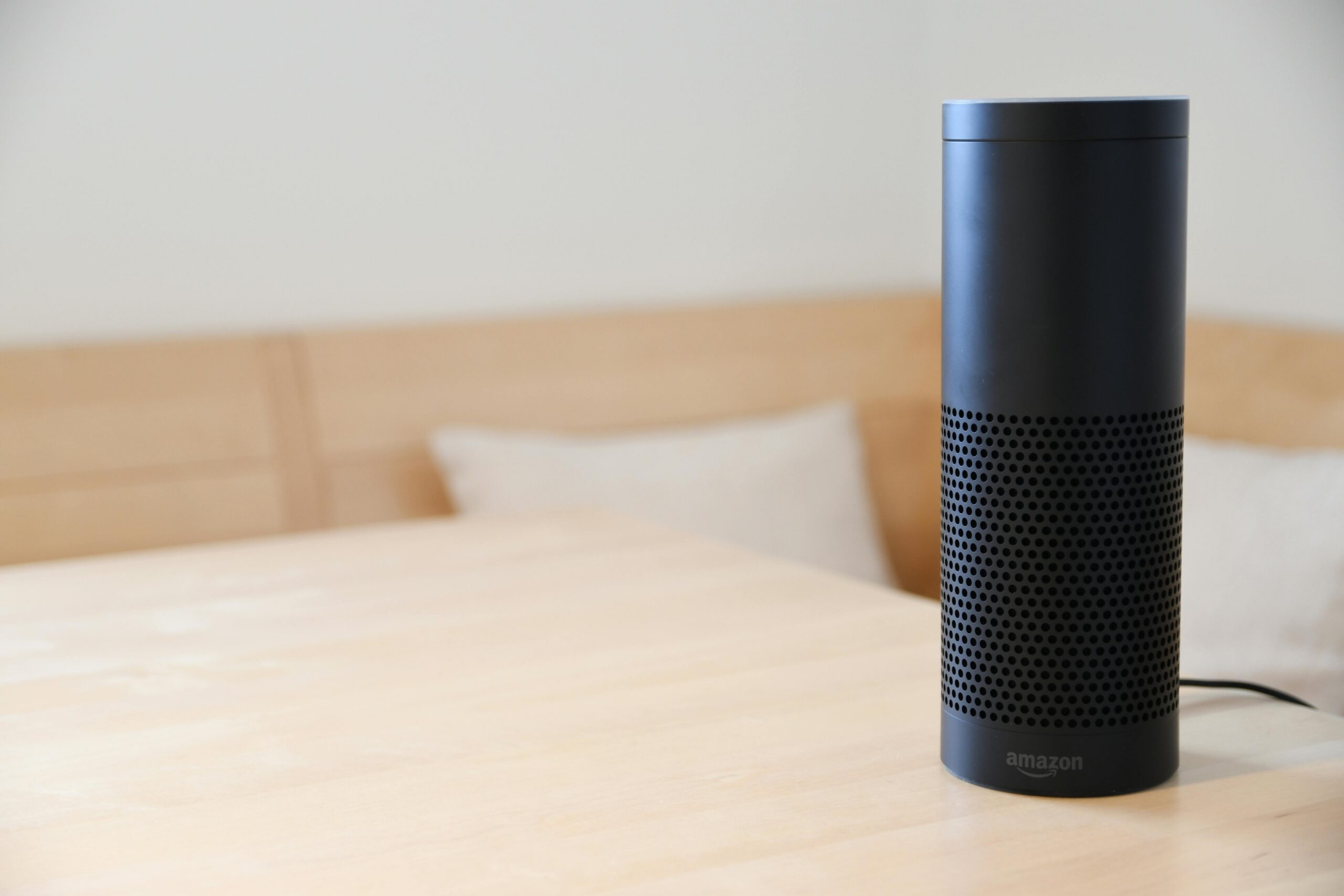
🌟 Making Alexa Your Mobile Companion
Successfully integrating Alexa into your mobile life transforms how you interact with technology throughout your day. The assistant evolves from a stationary device in your home to a portable helper that adapts to your location and needs.
Start by identifying your most frequent tasks—whether that’s controlling smart home devices, managing shopping lists, setting reminders, or playing music. Create routines around these activities to streamline daily interactions. The more you customize Alexa to your specific patterns, the more valuable she becomes.
Remember that Alexa continuously improves through machine learning. Regular use helps the assistant understand your preferences, speech patterns, and routine needs. What feels robotic initially becomes increasingly natural as the system learns your habits and adjusts accordingly.
The mobile Alexa experience represents Amazon’s vision of ambient computing—assistance available anywhere, anytime, without being tied to specific hardware. Whether you’re an Android enthusiast, iPhone loyalist, or someone who simply wants voice control on the go, the Alexa app delivers a comprehensive, capable assistant that fits in your pocket and travels wherever life takes you. 🚀
